

AI dry goods packaging design
Describe the nut, grain, or dried fruit — Pacdora drafts the pouch shoppers trust.
Trusted by leading companies


Build a pouch that protects and sells
Dry goods live or die by freshness cues: resealable zippers, product windows, flavor names, and barrier claims all fight for the same pouch face.
Pacdora drafts artwork on a selected stand-up pouch, previews it in 3D, and exports files for printer review.
Why choose Pacdora AI for your dry goods packaging?
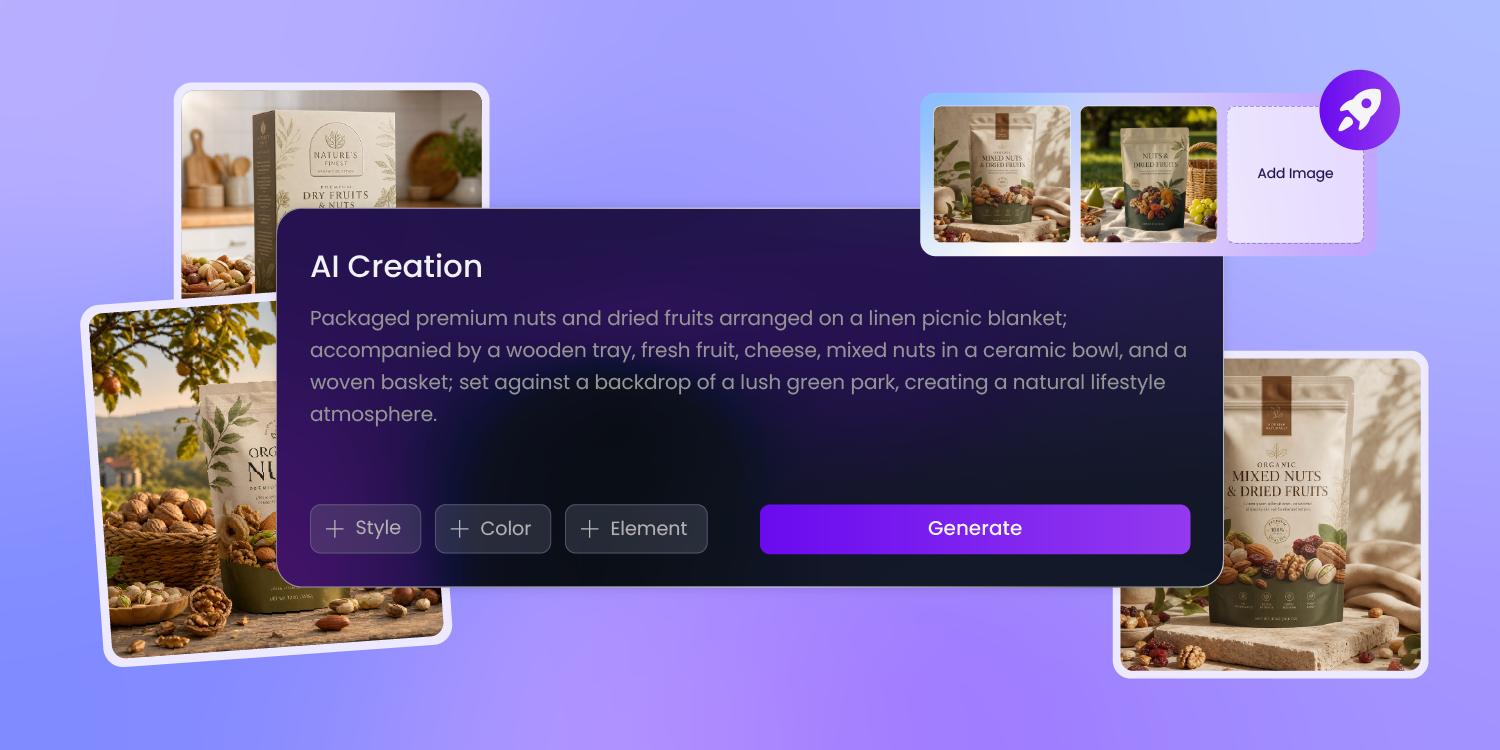
Make freshness visible fast
Nuts, dried fruit, and grains sell on crunch, color, and origin.
Put the ingredient, flavor, and storage cue into the brief; Pacdora builds a pouch front where freshness reads before the shopper checks the back label.
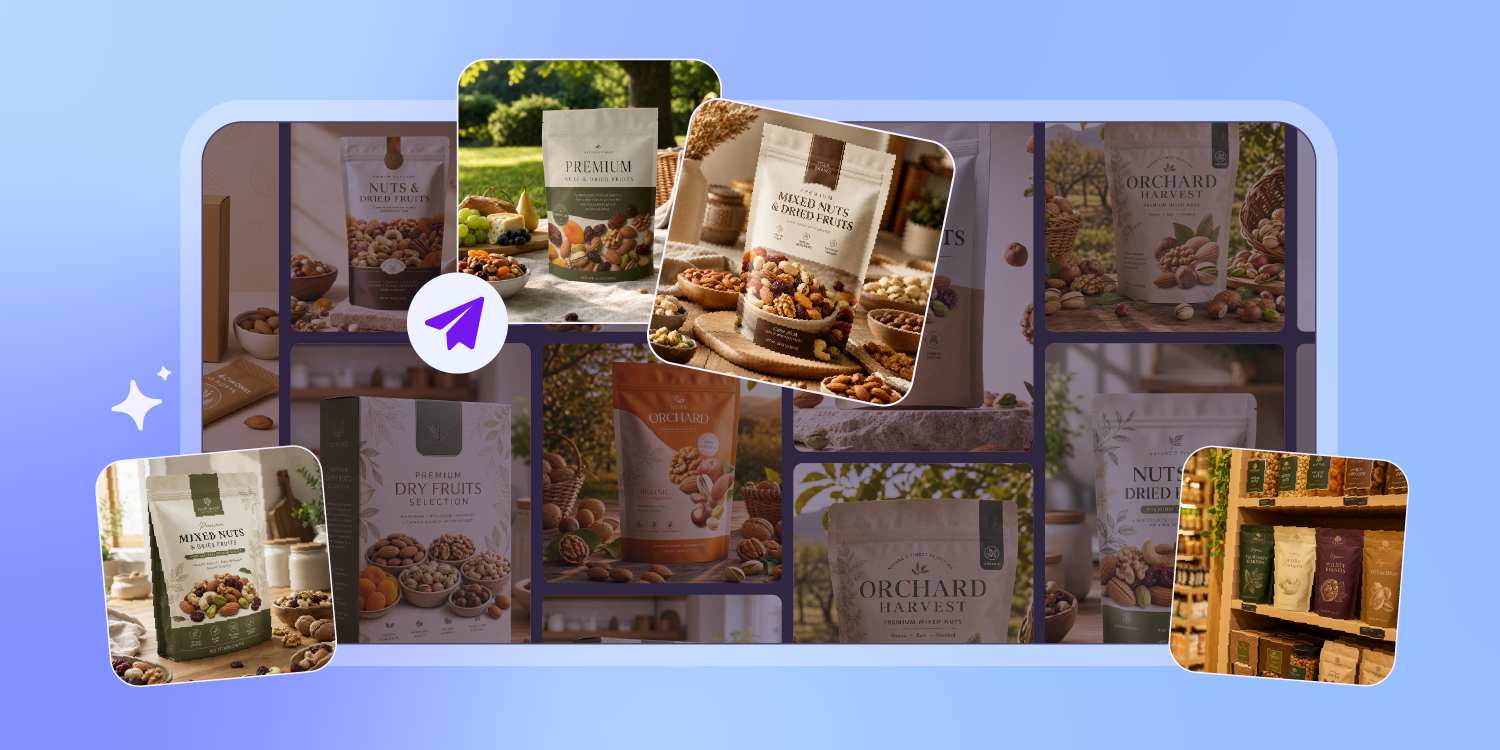
Design around the pouch shape
A stand-up pouch changes after filling: gussets swell, the zipper seam cuts into headspace, and the bottom curve steals artwork.
Pacdora applies graphics to real pouch geometry, so product windows, logos, and claims stay clear after the pack stands up.
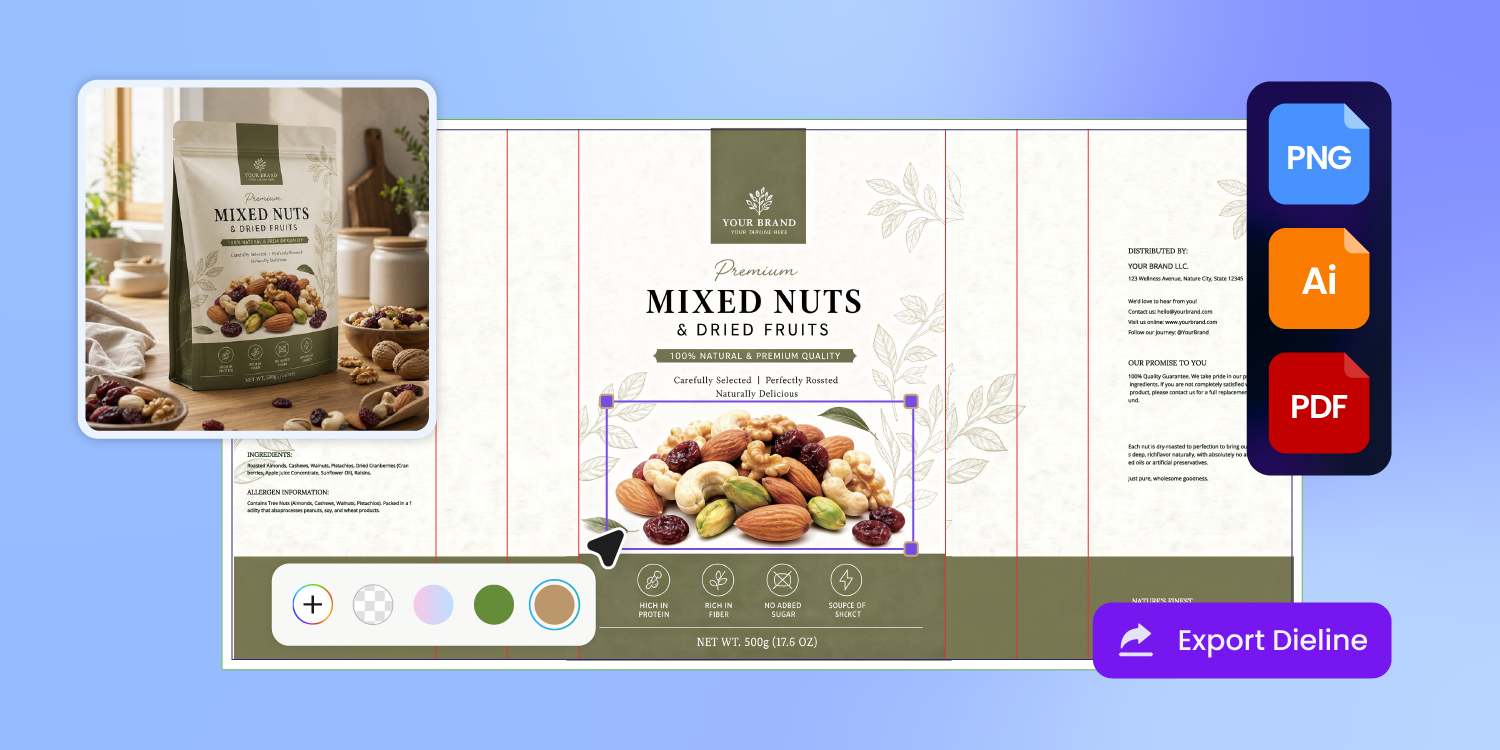
Preview kraft, clear, and matte looks
Dry goods often choose between kraft paper trust, transparent windows, and bright snack-aisle color.
Our 3D preview renders the chosen direction on the pouch, so you can judge contrast, window placement, and shelf feel before ordering printed bags.
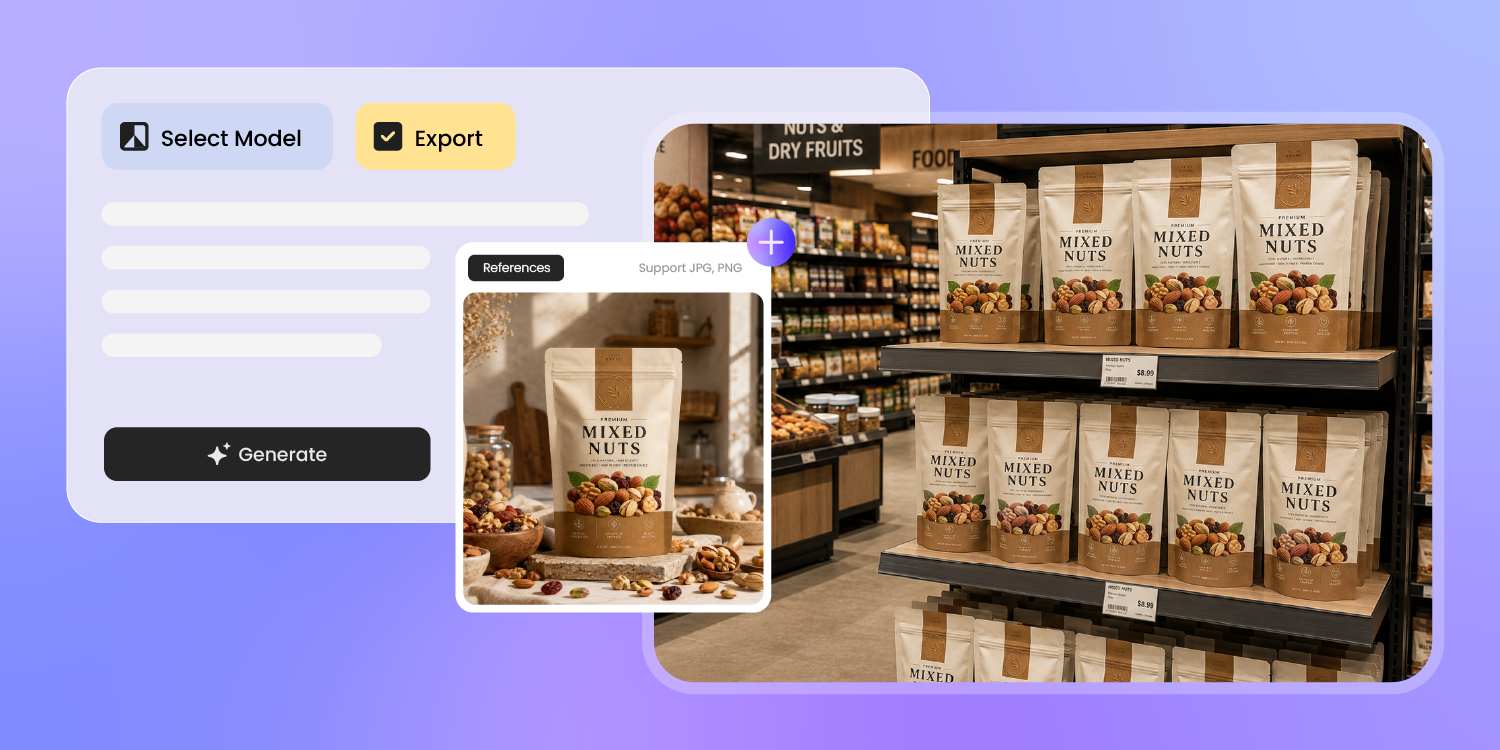
Carry one SKU into launch assets
A farmers market bag, Amazon image, and wholesale sell sheet all need the same approved pouch.
Pacdora exports print-ready artwork plus 3D product visuals, so the dry goods launch can move from printer review to ecommerce without a photo shoot.
How to design dry goods packaging with AI?
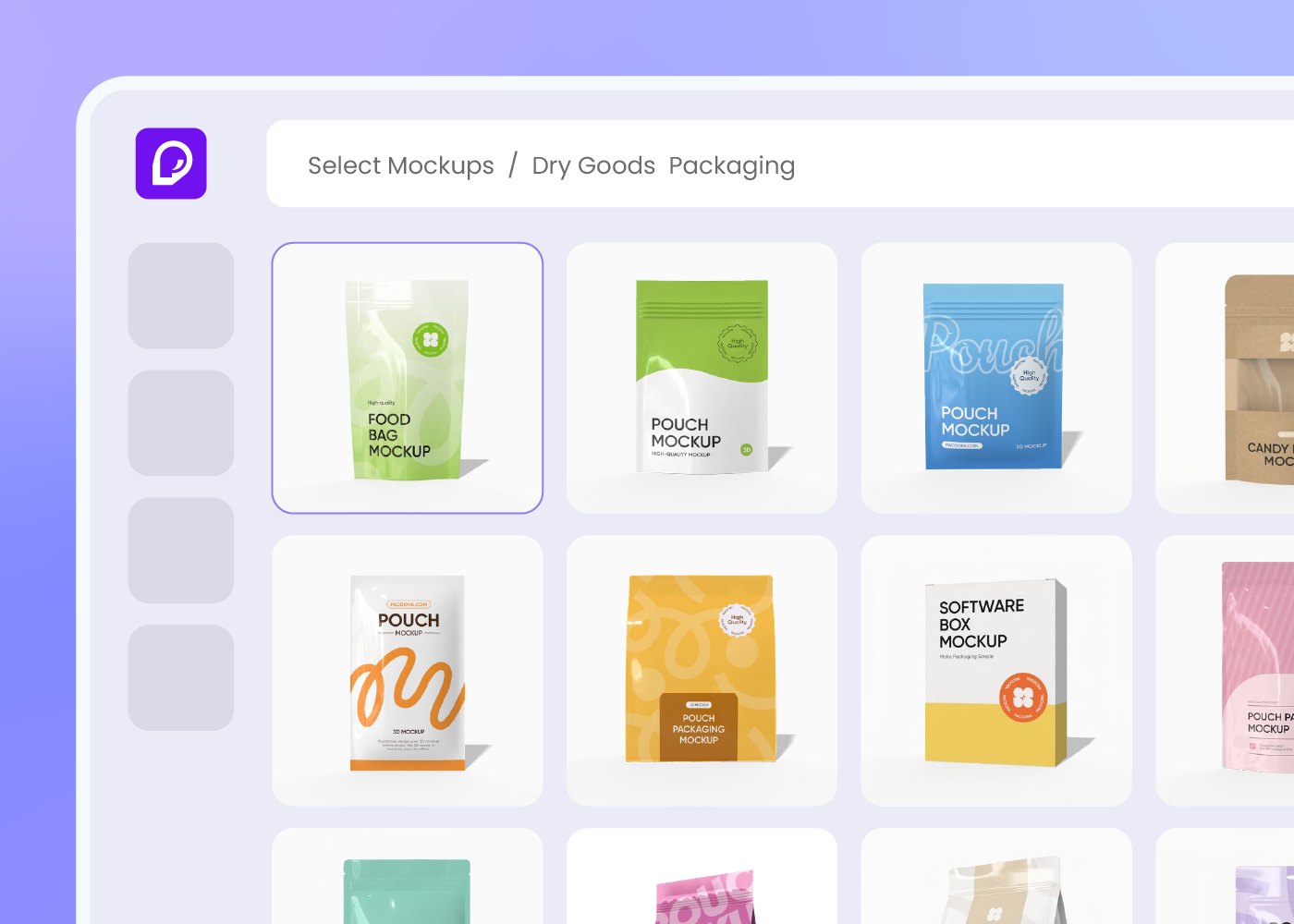
Step 1: Choose a pouch or bag
Choose a stand-up pouch, flat-bottom pouch, sachet, or bag style that matches your dry goods format.
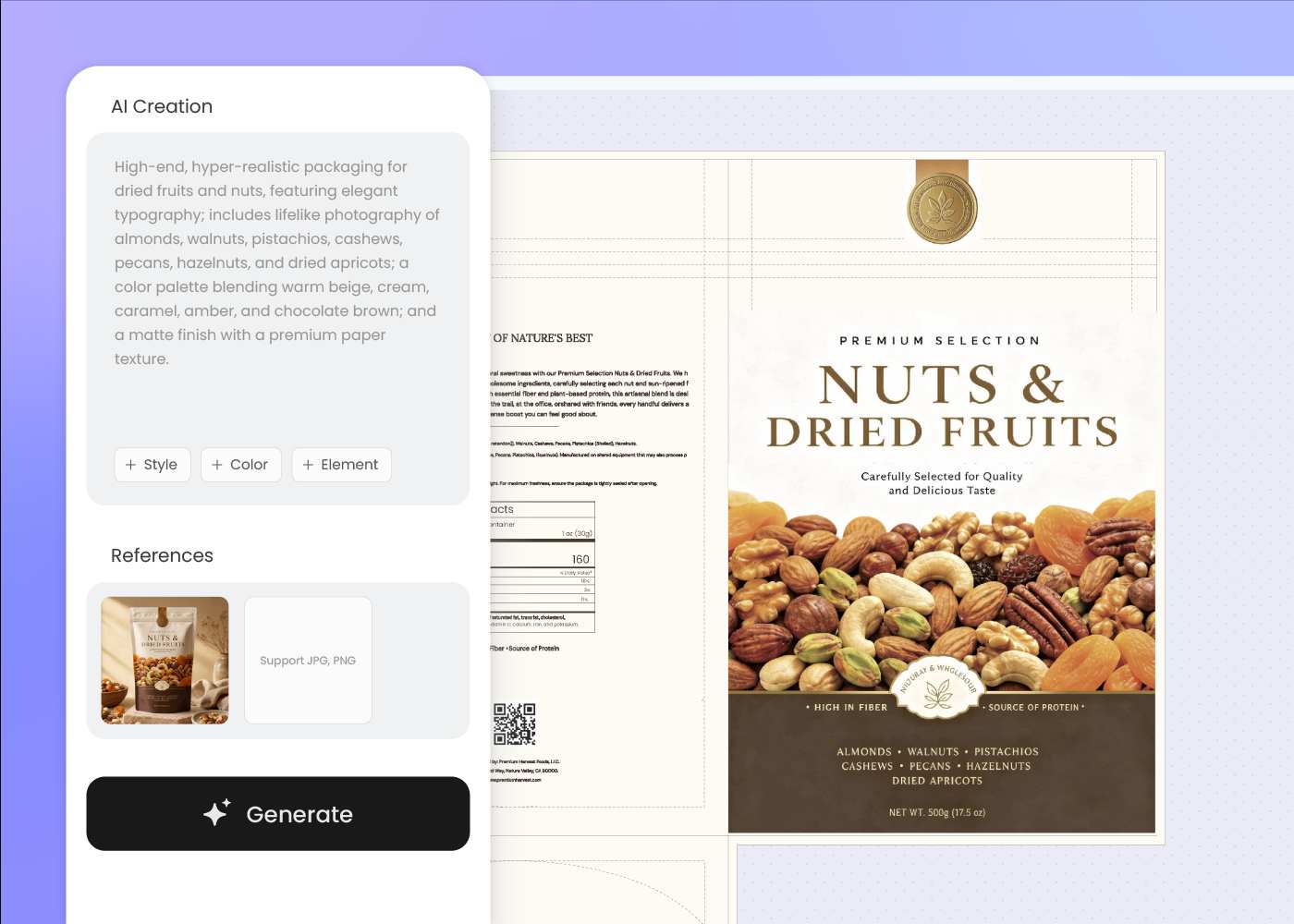
Step 2: Describe product and shelf cues
Enter the ingredient, flavor, origin, weight, storage cue, and brand mood; add a reference pouch if needed.
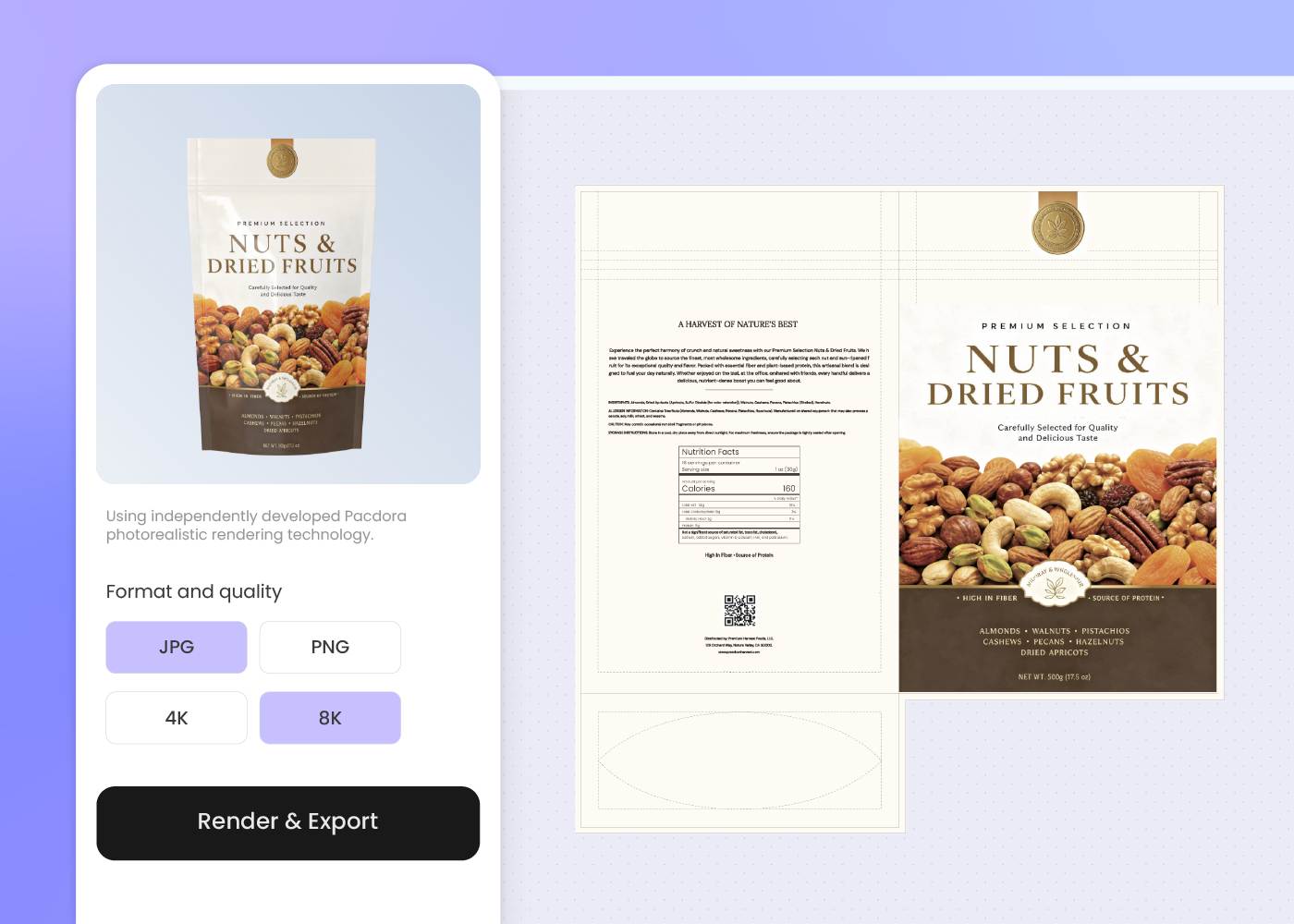
Step 3: Export files and visuals
Regenerate until the pouch feels right, then export print-ready artwork, dieline files, and 3D visuals for launch.
Step 1: Choose a pouch or bag
Choose a stand-up pouch, flat-bottom pouch, sachet, or bag style that matches your dry goods format.
Step 2: Describe product and shelf cues
Enter the ingredient, flavor, origin, weight, storage cue, and brand mood; add a reference pouch if needed.
Step 3: Export files and visuals
Regenerate until the pouch feels right, then export print-ready artwork, dieline files, and 3D visuals for launch.
FAQ
Frequently asked questions
What dry goods packaging can I design?
Pacdora works best for pouch-based dry food packaging: nuts, dried fruit, rice, grains, beans, granola, trail mix, and similar shelf-stable foods. Choose a pouch, sachet, or bag structure first, then design one product at a time.
Can I show a product window or kraft pouch look?
Yes. Describe a clear window, kraft-paper style, matte finish, or bright snack pouch direction, then preview it in 3D. Clear windows help when color and texture sell the product, such as dried mango, trail mix, or premium nuts. Kraft usually signals pantry, natural, or refillable goods. Your printer still confirms the actual film, paper layer, window construction, and food-contact material.
Can Pacdora choose the right barrier film?
No. Pacdora handles the packaging design, dieline export, and 3D visuals; it does not choose oxygen, moisture, aroma, or light-barrier films. In general, nuts need oxygen and moisture control to protect oils and crunch; dried fruit needs moisture control so it does not harden or get sticky; coffee and spices often need aroma protection; rice, beans, and grains usually care more about strength, resealability, and shelf display. Your printer or co-packer confirms the final material.
What pouch details should I confirm before printing?
Confirm the zipper position, tear notch, seal area, bottom gusset, hang hole if needed, and the filled pouch shape. These details affect where the logo, product window, net weight, and storage cues should sit. Pacdora helps you design on the pouch geometry, but the printer confirms sealing, filling, and run specs.
Can I make multiple flavors look like one line?
Yes, with similar prompts. Design the first almond, cashew, rice, or dried fruit pouch, then create the next flavor with the same logo, color system, and type cues in your brief. For dry goods, keep flavor color, product window, and origin claim in consistent zones so the line reads together. Pacdora does not carry elements across automatically, so review each SKU.
Can I create product images before printed bags arrive?
Yes. Once the pouch direction feels right, Pacdora can generate 3D product visuals for Amazon images, wholesale sell sheets, market booth signs, and retailer decks. Use those assets to test flavor names, window placement, and shelf presence before ordering a full printed pouch run.
How much does AI dry goods packaging design cost?
You can start designing for free. Credits are consumed based on how many designs you generate and download. Check your account balance before generating, or upgrade for more credits anytime. For full details on subscription plans and credit packages, see our Pricing Page.
Can I use the dry goods packaging design commercially?
Yes. As long as you comply with our Terms of Service, AI-generated dry goods packaging can be used commercially for ecommerce listings, wholesale sell sheets, product launches, and production discussions with your printer or co-packer.
Explore more free tools
Discover more about Pacdora
4M+
designers trust Pacdora
Dry goods packaging, sealed by AI.
