

Trusted by leading companies


The tuck box is the first card you play
Backers meet your deck as a tuck box first — if it doesn't sell the theme, they scroll past before they see a card.
Lay out your theme, pick a tuck box, and Pacdora generates the artwork on the real dieline. Preview the box structure and paper texture in 3D before a print run.
Why choose Pacdora AI for your playing cards packaging?
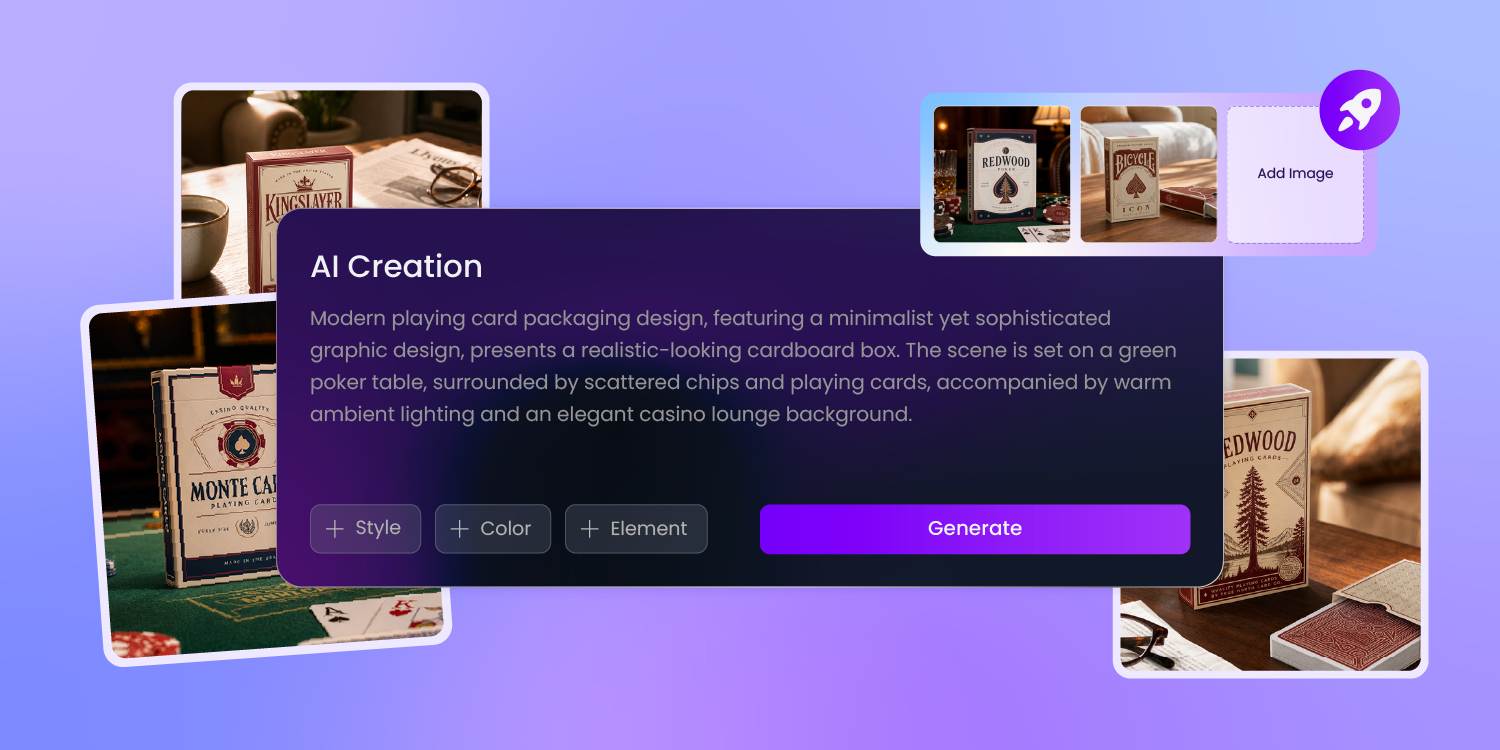
Set the theme on the tuck box
A horror deck and a kids' card game shouldn't wear the same box.
Lay out your theme — gothic, retro, neon, whatever the deck is — and Pacdora generates the front, spine, and back artwork on the tuck box, so the whole world reads before anyone opens it.
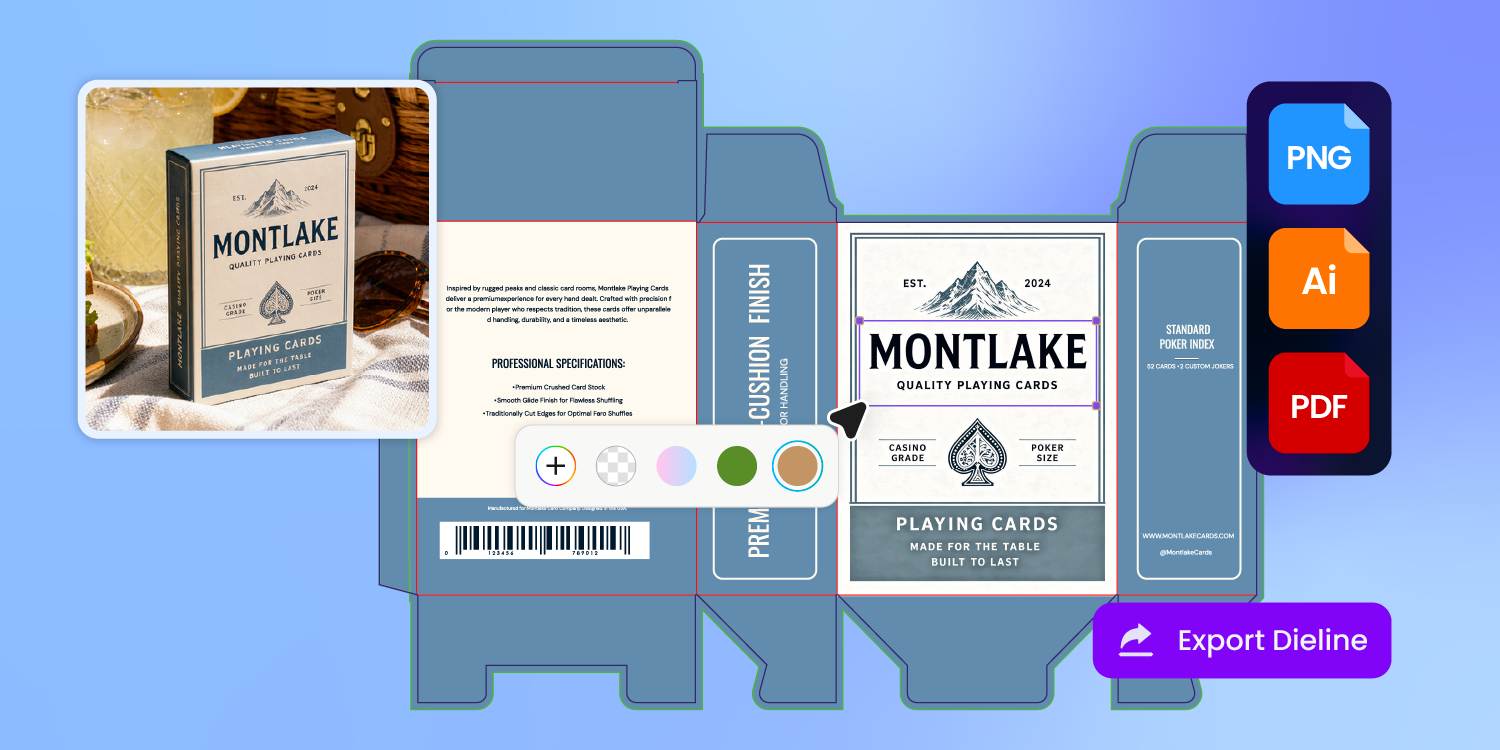
Fit the box to your deck
A tuck box that's a millimetre off won't close over 54 cards.
Instead of guessing, you start from a real poker or bridge tuck dieline in Pacdora's library — tuck flaps, thumb notch, and glue tabs already in place — and design on the exact cut-and-fold your printer will run.
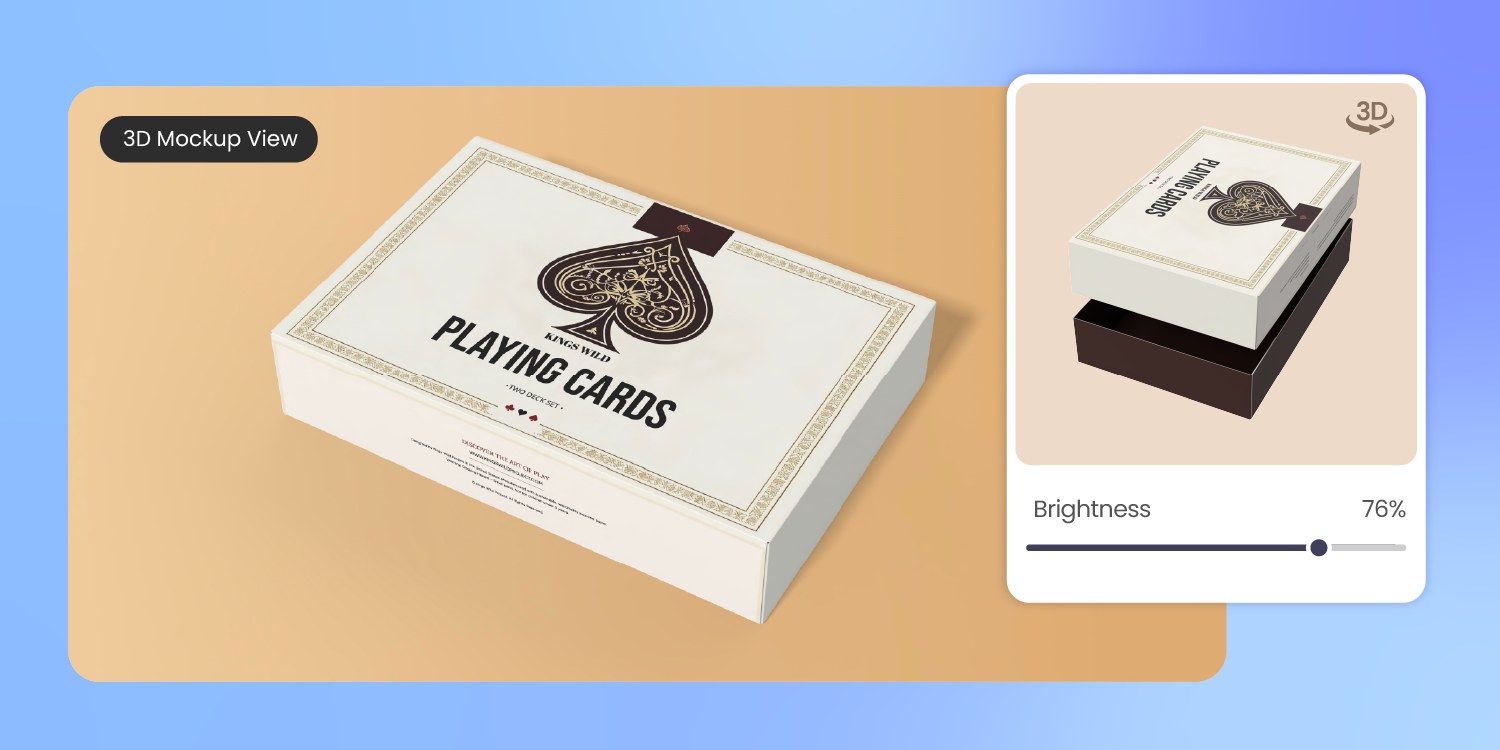
See the paper texture before you print
The same artwork can feel premium, playful, or handmade depending on the stock.
Pacdora renders the tuck box with realistic kraft paper, white card, and coated paper textures, so you can judge how the material supports the deck before sending files to print.
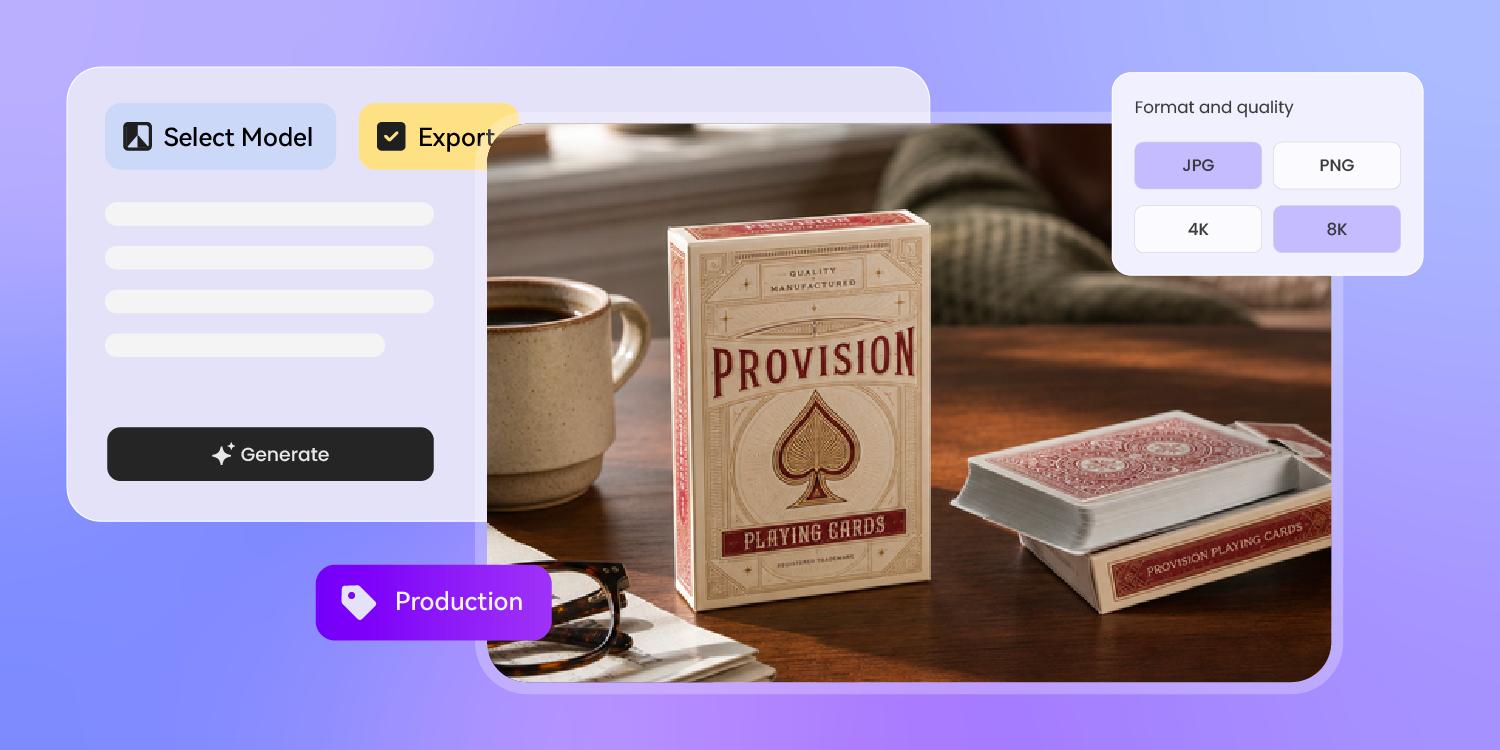
Build your Kickstarter campaign shots
A Kickstarter page sells on its visuals alone, and the deck won't be printed for months.
Pacdora spins one approved tuck box into a 3D hero render, a styled product shot, and a short promo clip — so the campaign looks shipped while it's still a file.
How to design playing cards packaging with AI?
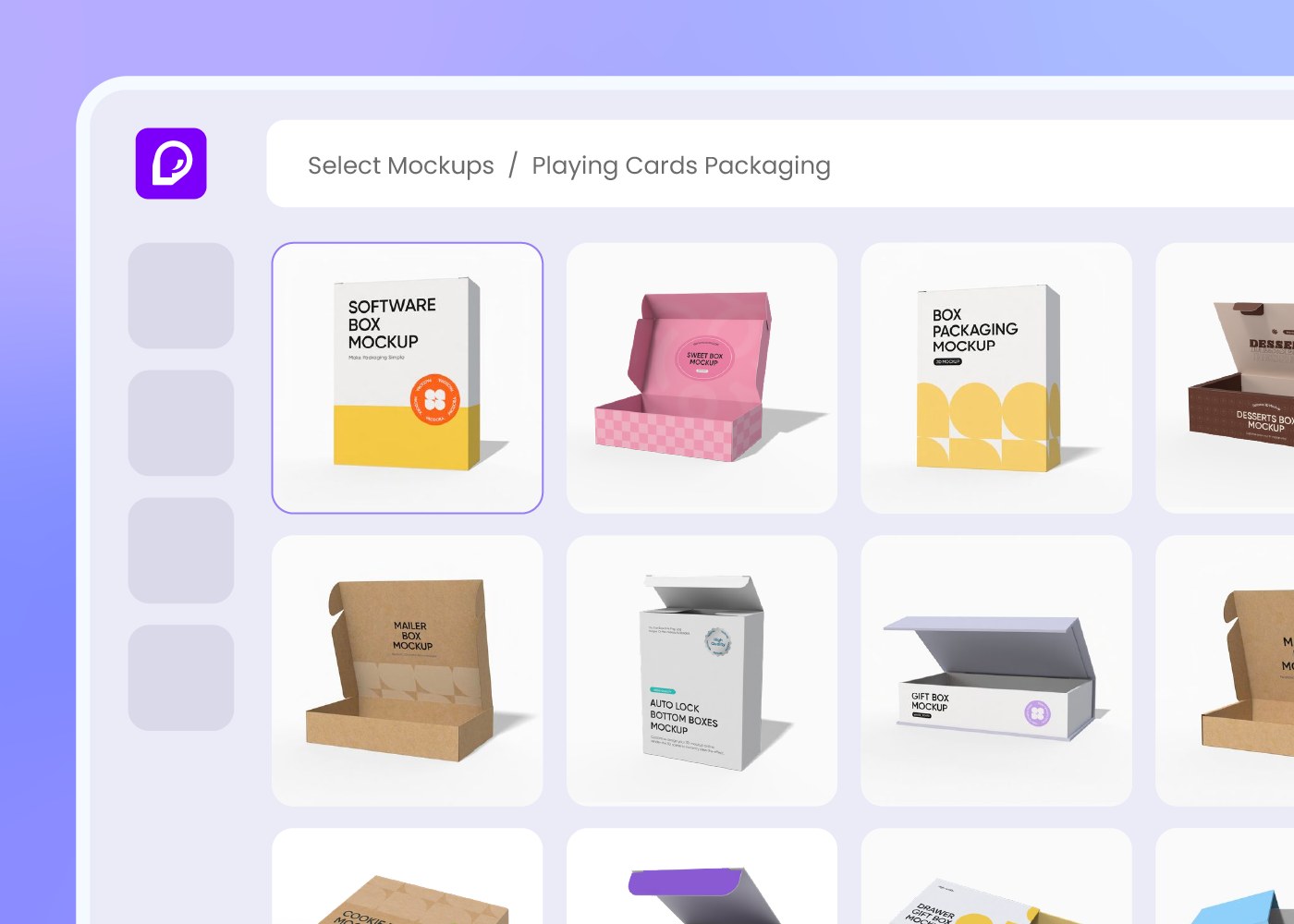
Step 1: Choose your card box style
Choose a box style — a tuck box, a lidded box, or a drawer box — and Pacdora loads the matching dieline for your deck size.
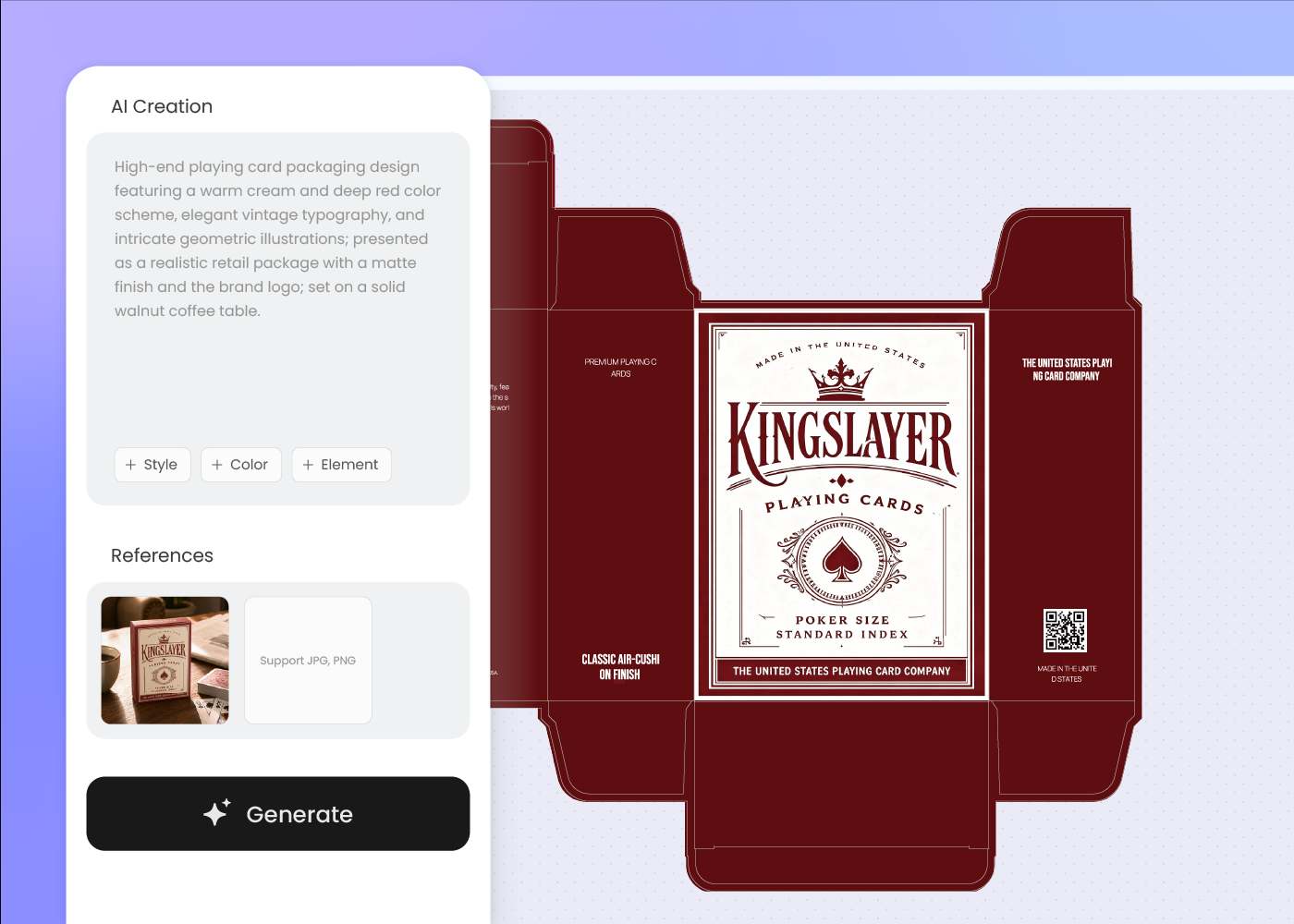
Step 2: Lay out your theme
Lay out your theme, art style, and any finishes, add a reference image if you have one, then regenerate until the box fits the deck.
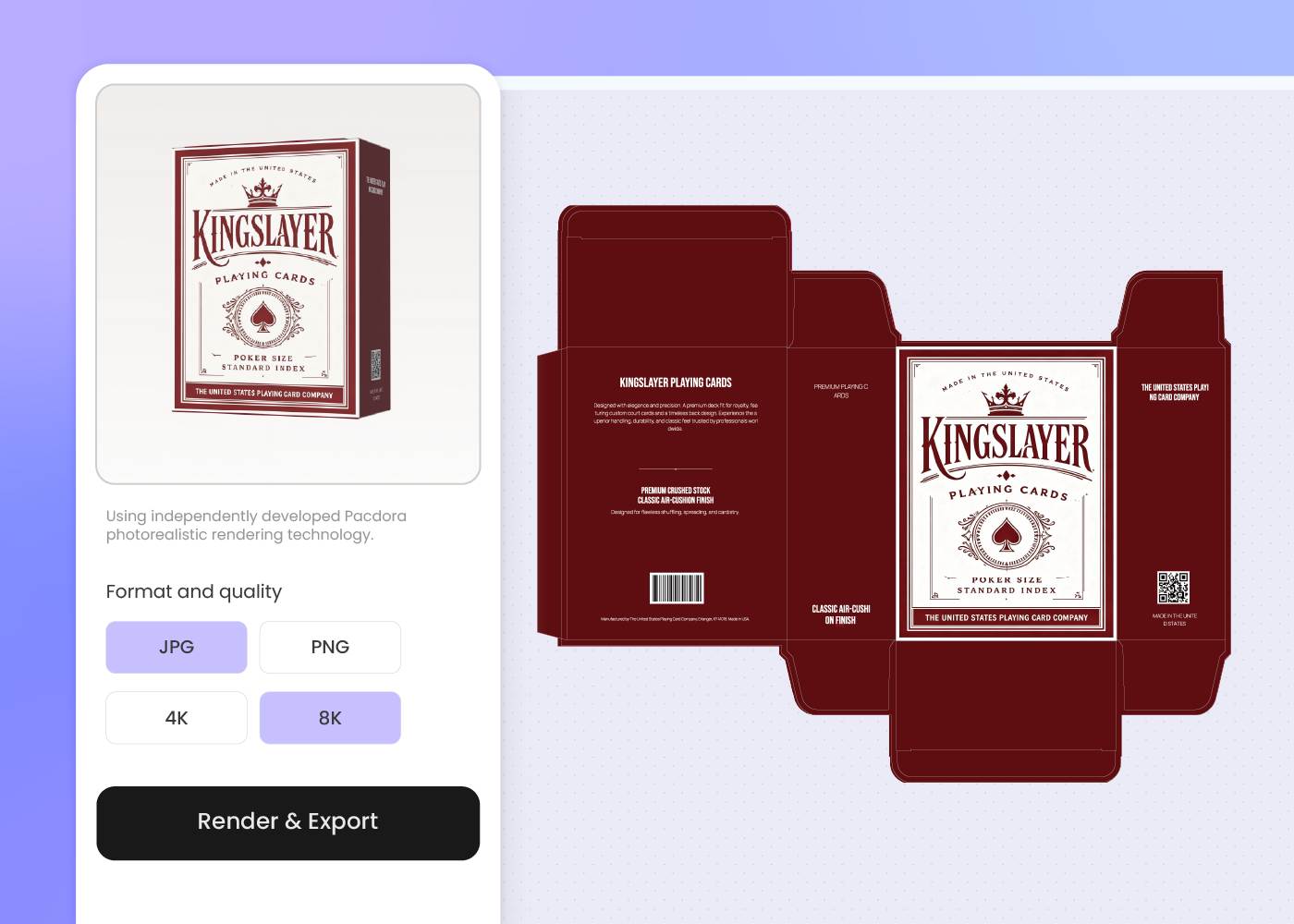
Step 3: Export for print or campaign
Export a print-ready dieline and 3D visuals for your card printer, your Kickstarter page, or your online store.
Step 1: Choose your card box style
Choose a box style — a tuck box, a lidded box, or a drawer box — and Pacdora loads the matching dieline for your deck size.
Step 2: Lay out your theme
Lay out your theme, art style, and any finishes, add a reference image if you have one, then regenerate until the box fits the deck.
Step 3: Export for print or campaign
Export a print-ready dieline and 3D visuals for your card printer, your Kickstarter page, or your online store.
FAQ
Frequently asked questions
What card box styles can I design with AI?
Pacdora covers the common deck boxes — tuck boxes, lidded boxes, and drawer boxes — sized for poker, bridge, or tarot cards. Pick the closest structure first, then design the box for one deck at a time.
Can I preview different paper textures?
Yes. Pacdora can show the box in 3D with material looks such as kraft paper, white card, or coated paper, so you can compare the texture and overall shelf feel before printing. For specialty finishes such as foil stamping, embossing, or spot UV, confirm the final effect and cost with your printer.
Will the dieline fit my deck and my printer?
Pacdora starts from real tuck, lidded, or drawer box dielines, so the artwork sits on cut-and-fold geometry instead of a flat concept image. Still, printing paths differ.
Can I match the box to my card backs and theme?
Yes. Upload your card back or key art as a reference, and Pacdora draws on its colors and style so the tuck box feels like part of the same deck. It riffs on the look rather than copying it pixel-for-pixel.
How much does AI playing cards packaging design cost?
You can start designing for free. Credits are consumed based on how many designs you generate and download. Check your account balance before generating, or upgrade for more credits anytime. For full details on subscription plans and credit packages, see our Pricing Page.
Can I use the playing cards packaging designs commercially?
Yes. As long as you comply with our Terms of Service, AI-generated card packaging can be used commercially for Kickstarter campaigns, ecommerce listings, retail decks, and production with your printer.
Explore more free tools
Discover more about Pacdora
4M+
designers trust Pacdora
Give your deck the box it deserves.
